var arr = [45, 24, 113, 19, 1, 228];
arr.sort( );
document.writeln(arr);
Ans: The output is
1,113,19,228,24,45The values to sort are being changed to strings, then sorted in alphabetical order. To change the sort order, we must pass a compare function to the sort method. The compare method has two parameters a and b. It returns a positive value if a > b, a negative value if a < b, and zero if a == b. We can define the compare method something like this:
function compare(a, b) {
    if (a > b) {
        return 1;
    }
    else if (a < b) {
        return -1;
    }
    else {
        return 0;
    }
}
and then sort the array like this:arr.sort(compare);An shorter, more elegant way to write the compare method is like this:
function compare(a, b) {
    return b - a;
}
If a > b, a - b is positive, if a < b, a - b is negative, and if a == b,
a - b is zero. We can even pass in the function as an anonymous function
in arrow notation:arr.sort((a, b) => a - b);
==================================
<!DOCTYPE html>
<!-- Enlarge Image Example
     Source code file: image.html -->

<html lang="en">
    <head>
        <meta charset="UTF-8">
        <title>Inflate Image</title>
        <script src="script.js"></script>
    </head>
    <body>
        <h1>Inflate Image</h1>

        <img id="img1"
            src="images/earth-from-space.jpg"
            alt="Earth from Space">
    </body>
</html>
-----------------------------------
// Enlarge Image Example
// Source code file: script.js

// Global variable containing the image object.
var image1;

function inflateImage( ) {
    image1.style.width = "300px";
}

function restoreImage( ) {
    image1.style.width = "200px";
}

function init( ) {
    image1 = document.getElementById("img1");
    image1.addEventListener("mouseenter", inflateImage);
    image1.addEventListener("mouseleave", restoreImage);
}

window.addEventListener("load", init);
===================================
================================
<!DOCTYPE html>
<html lang="en">
    <head>
        <meta charset="UTF-8">
        <title>Coin Flip Example</title>
        <link rel="stylesheet" href="styles.css">
        <script src="script.js"></script>
    </head>
    <body>
        <h1>Inflate Image</h1>
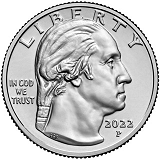
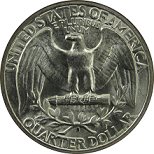
        <img id="img1" alt="Result of Coin Flip">
    </body>
</html>
--------------------------------
// Coin Flip Example
// Source code file: script.js
function init( ) {
    var image1 = document.getElementById("img1");
    var randomNumber = Math.random( );
    var imageName = (randomNumber >= 0.5) ? "heads" : "tails";
    image1.src = "images/" + imageName + ".png";
}
window.addEventListener("load", init);
================================
focus blurAnswer:
<!DOCTYPE html>
<head>
<script>
function focusEventHandler( ) {
    var para = document.getElementById("p1");
    para.innerHTML += "focus Event occurred.<br>\n";
}

function blurEventHandler( ) {
    var para = document.getElementById("p1");
    para.innerHTML += "blur Event occurred.<br>\n";
}

// Callback function
function init( ) {
    var textField = document.getElementById("tf1");
    textField.addEventListener("focus", focusEventHandler);
    textField.addEventListener("blur", blurEventHandler);
}
window.onload = init;
</script>
</head>
<html>
    <body>
        <h1>Test Events</h1>
        <input type="text" id="tf1"><br><br>
        <input type="text" id="tf2"><br>
        <p id="p1"></p>
    </body>
</html>